New phone controls: a joystick, an attack button, and aimed skills
On phones and tablets, the game now has controls made for touch, in the style of mobile games. They show up on their own when you play on a touch-screen device, held upright or sideways. On a computer with a mouse and keyboard, everything stays exactly as before. On a laptop with a touch screen, the game keeps the mouse and keyboard; if you want the touch buttons, choose Controls: Tap in the Game menu.
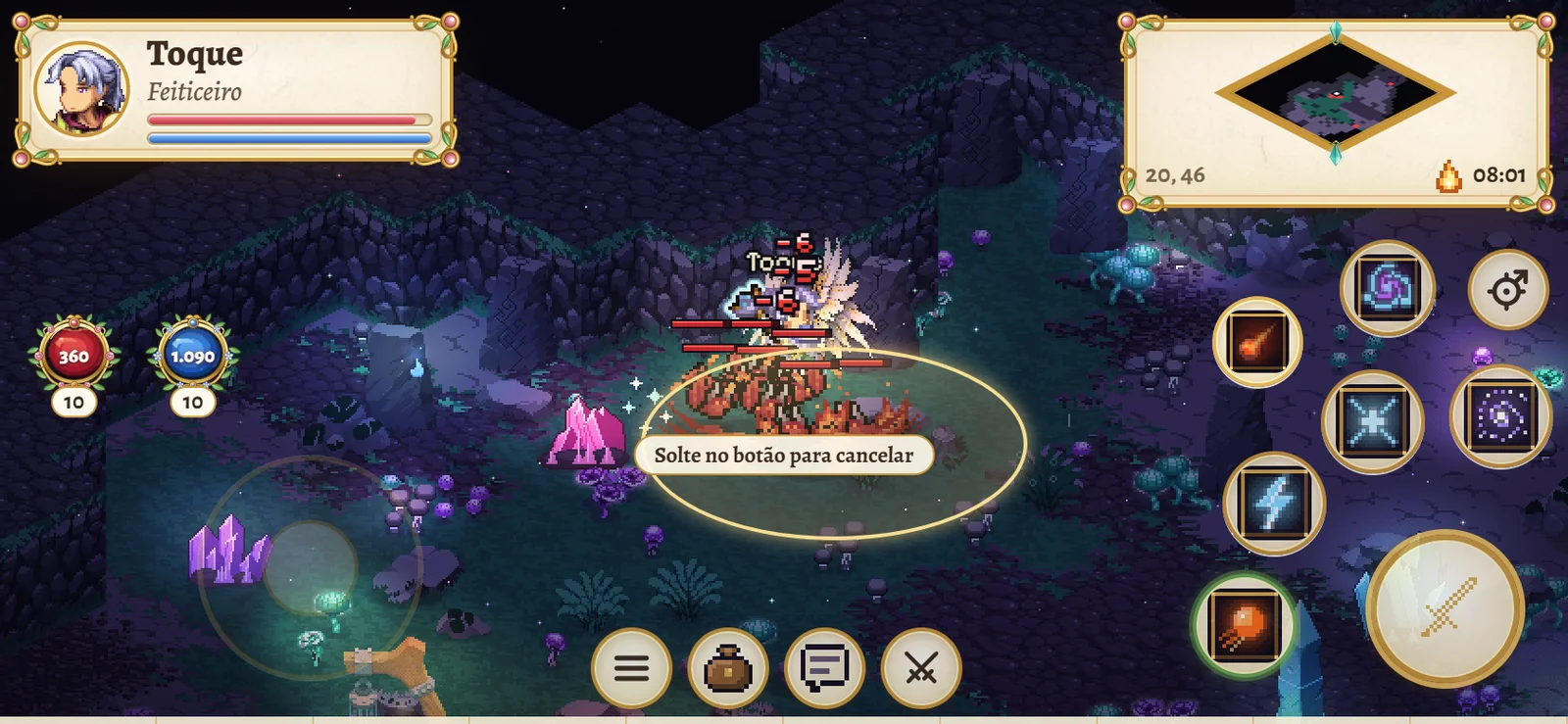
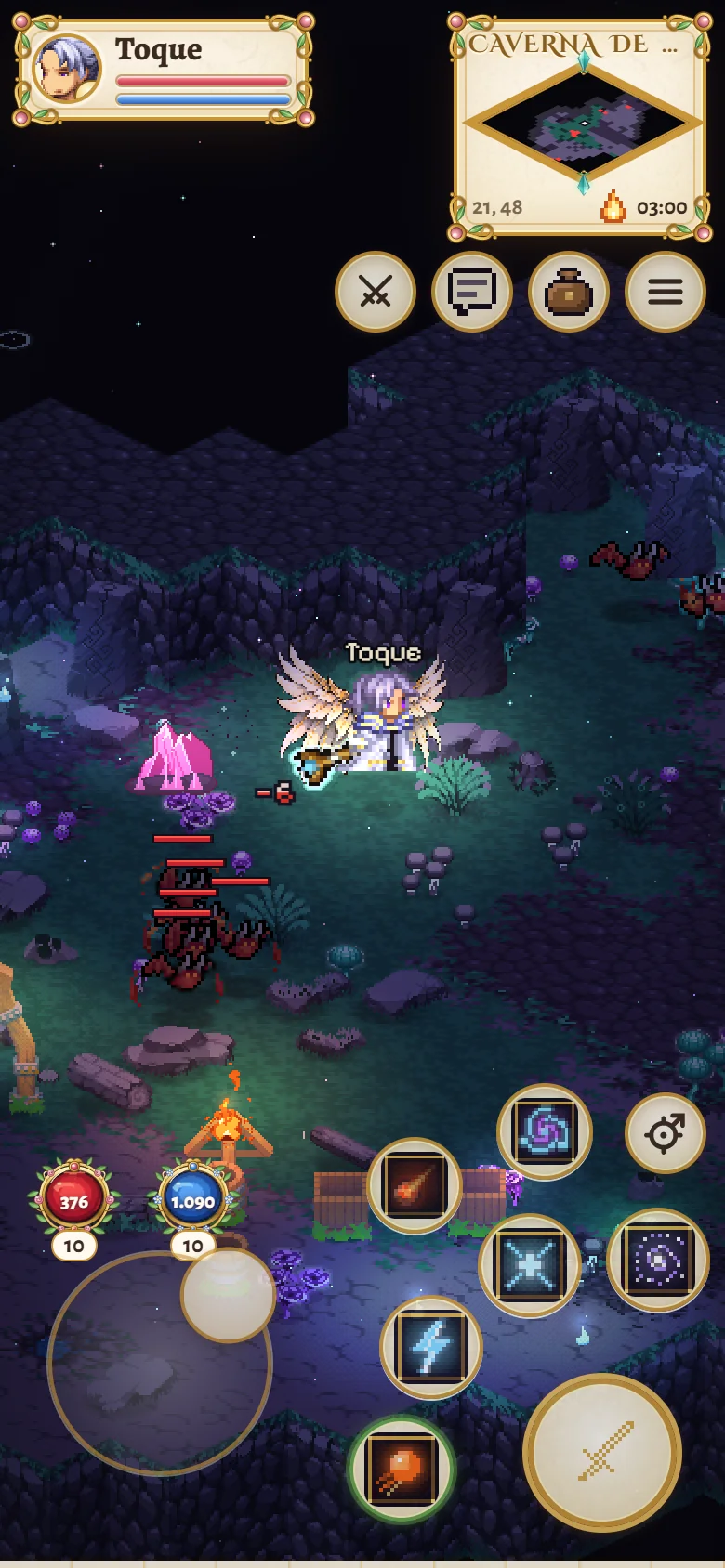
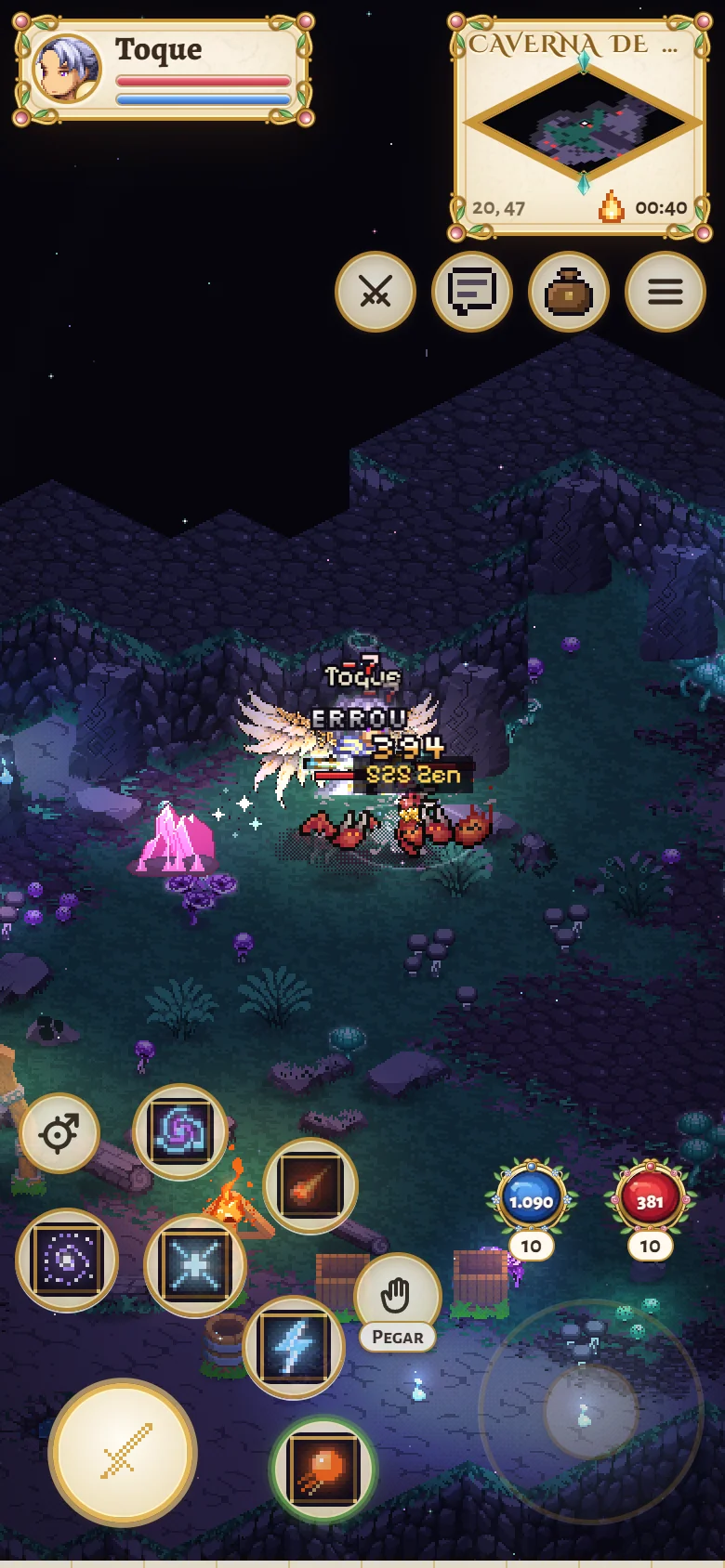
To walk, put your thumb on the bottom corner of the screen and drag toward where you want to go: the joystick appears where you touched, and the hero walks while you hold it. If you prefer, the joystick can stay in one fixed place. Tapping a monster, NPC, item, or door still works as before.
The big sword button attacks. One tap attacks your target or the nearest monster. If you hold it, the hero keeps attacking and moves on to the next monster for as long as your finger stays on the button. The crosshair button next to it, Switch target, picks the next monster without attacking. There is no auto-hunting: the hero only fights while you tap or hold the button.
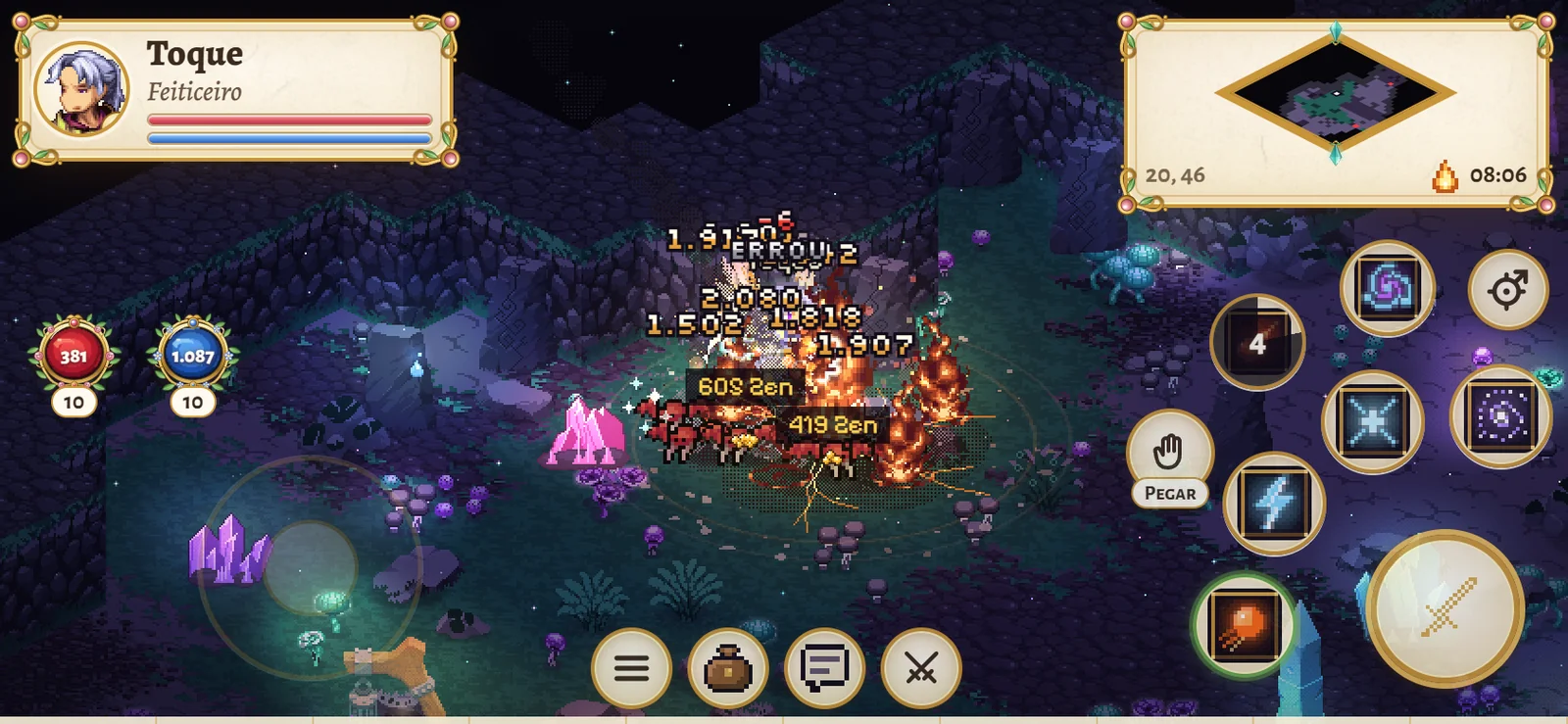
The skills in slots 1 to 6 of your bar sit around the attack button. One tap uses the skill on your target. To aim skills such as Meteor and Teleport, drag your finger out from the button: a mark on the ground shows where it will land, and when you let go the spell goes there. Changed your mind? Slide your finger back onto the button and let go, and nothing is used. Holding the button without dragging repeats the skill, just like holding the right mouse button; aimable skills with a long cooldown, such as Meteor and Teleport, wait for you to drag or let go.
Tap the life or mana orb to drink a potion; hold it to keep drinking. When an item or Zen drops near you, a Pick up button appears: one tap picks up the nearest one, and holding it picks up several.
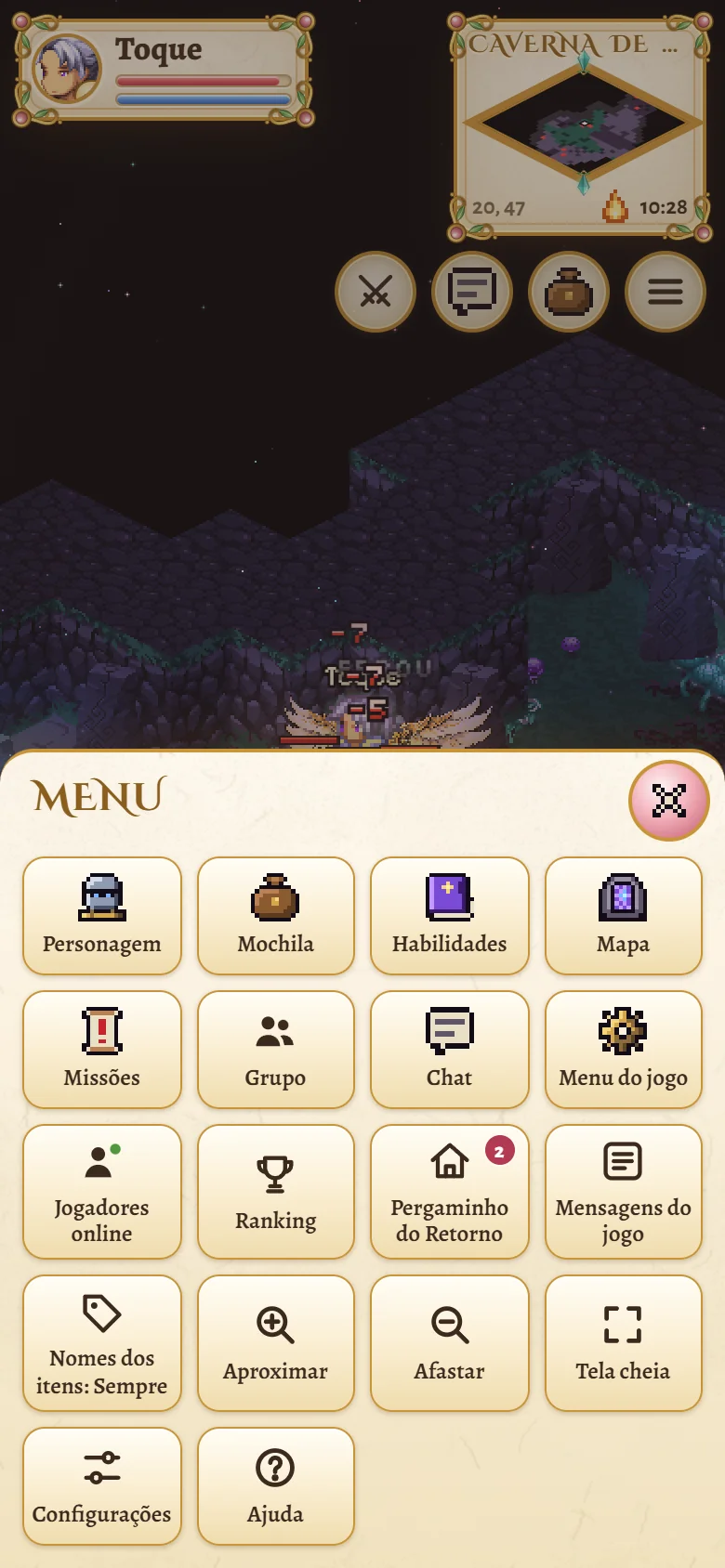
The row of round buttons holds the Menu, the Bag, the Chat, the PvP button (hold it to turn PvP on, instead of the Ctrl key), and the Raven for the Dark Lord. The Menu opens a drawer with every window and keyboard shortcut: Character, Bag, Skills, Map, Quests, Party, Chat, Game menu, Players online, Ranking, Return Scroll, Game messages, Item names, Zoom in, Zoom out, Full screen, Settings, and Help. Two fingers on the map zoom the camera in or out, and the Android back button first closes whatever is open, such as the drawer, an aim, or a window.
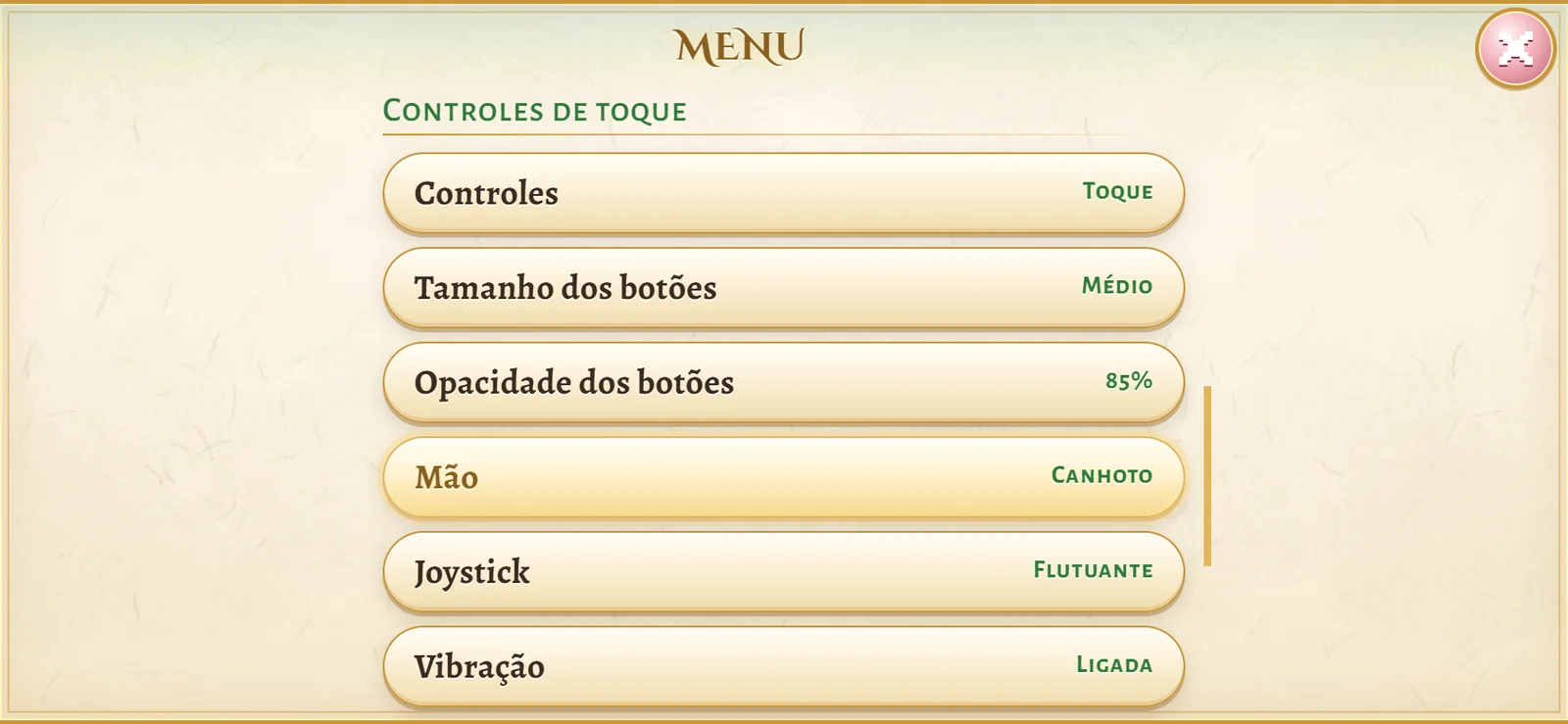
In Menu, Settings (or in the Game menu, under Touch controls) you can choose: Controls (Tap, or Classic to go back to the old tap-to-walk way), Button size (Small, Medium, or Large), Button opacity, Hand (Right-handed or Left-handed, which swaps the controls: joystick on the right and attack on the left), Joystick (Floating or Fixed), Vibration on devices that vibrate, and Resolution (Normal or High, which draws the game at the screen's full sharpness).
The buttons stay within reach of your thumb, away from the hero, and keep clear of the camera cutout on notched screens. The game rules did not change: damage, range, cooldowns, drops, and experience are the same as on a computer.
What changed
- Phones and tablets: new touch controls, upright or sideways; nothing changes on a computer.
- A joystick to walk in the bottom corner of the screen (floating or fixed).
- Attack button: one tap attacks your target or the nearest monster; holding it moves on to the next one. No auto-hunting.
- Switch target button: picks the next monster without attacking.
- Skills in slots 1 to 6 around the attack button: a tap uses it on your target, dragging aims, sliding back onto the button cancels.
- Life and mana orbs: one tap drinks a potion; holding keeps drinking.
- A Pick up button appears when an item or Zen is nearby; holding it picks up several.
- A row with the Menu, Bag, Chat, PvP (hold to turn on), and the Dark Lord's Raven.
- A Menu drawer with every window and keyboard shortcut.
- Two fingers on the map zoom the camera in or out; the Android back button closes whatever is open.
- Settings: Tap or Classic controls, button size and opacity, right- or left-handed, floating or fixed joystick, vibration, and resolution.
- Laptops with a touch screen keep the mouse and keyboard; the touch buttons can be turned on in the Game menu.
- Same game rules: damage, range, cooldowns, drops, and experience did not change.